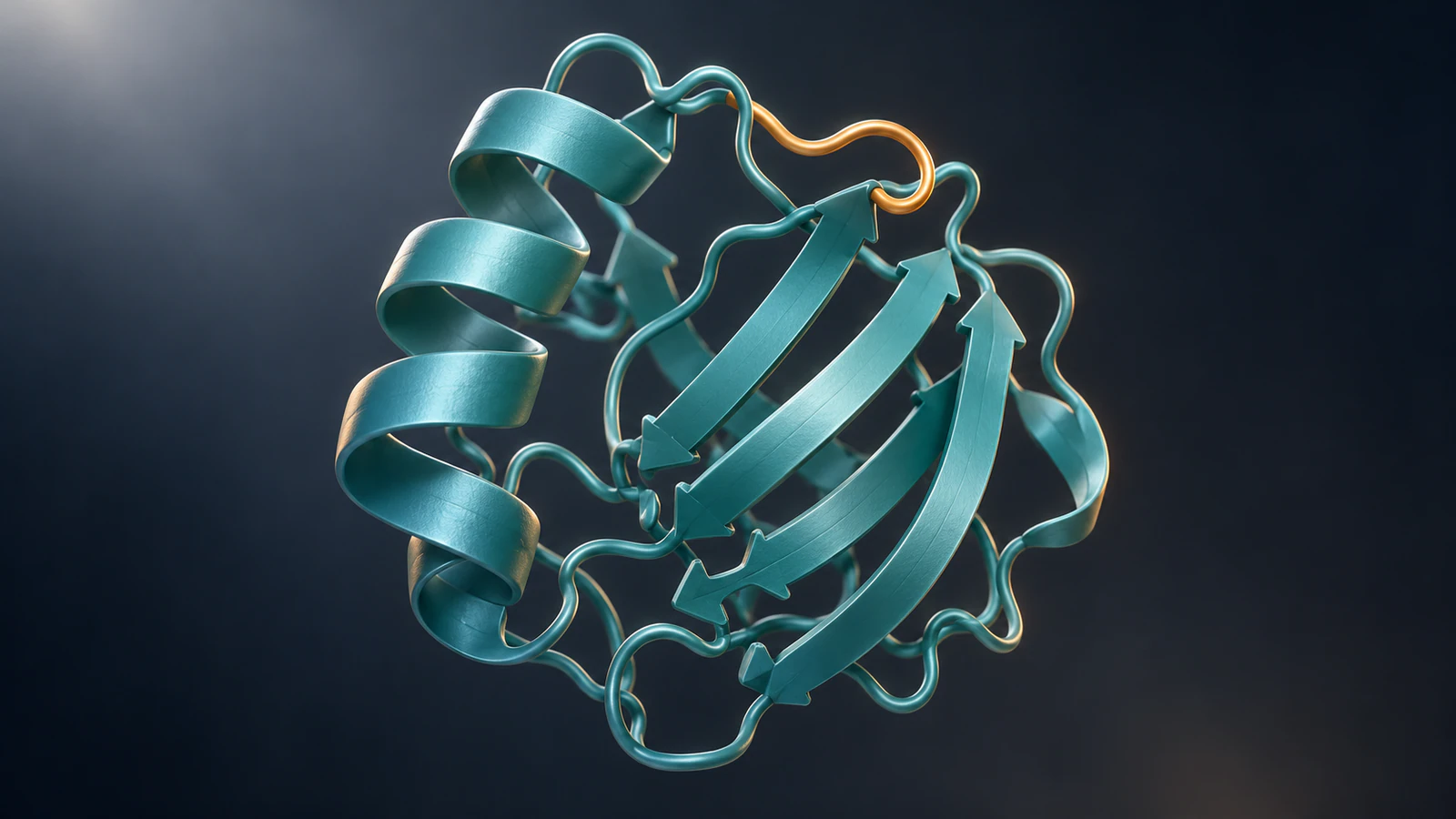
Make a four-second protein movie
To make a PyMOL movie, load a structure, define movie frames with mset and add a camera motion with util.mroll or util.mrock. Export that legacy movie with movie.produce, or save numbered PNG frames with mpng and encode them separately. In newer PyMOL versions, check that you are exporting the legacy movie rather than an unrelated Timeline composition.
This PyMOL movie tutorial uses ubiquitin, PDB 1UBQ, for a 120-frame example at 30 frames per second. The result should be a four-second view of one fixed structure. Turning the camera reveals shape; it does not show the protein folding, binding or moving through a simulation.
The commands below follow the documented movie workflow and current open-source implementation. We checked the motion helpers and tested the external encoding commands on a synthetic moving test pattern. We did not render this protein in a local PyMOL installation. The four editorial illustrations are conceptual, not screenshots or coordinate-derived views of 1UBQ.
Choose the movie system before starting
You need a working PyMOL installation, a writable output folder and the structure file or an internet connection for fetching it. For the separate MP4 route, install FFmpeg with the libx264 encoder and make its command available in your terminal. Record your actual PyMOL version and build in the project notes.
This guide uses the legacy mset movie system. PyMOL 3 also has a newer Timeline for compositions. Those are different workflows, even when both display a protein moving on screen. Avoid mixing a command tutorial for one with the export controls for the other.
A March 2026 reply from a PyMOL staff developer describes a 3.1 patch with a Legacy choice under File > Export Movie. Use that choice for a legacy movie when your build offers it. The command route below also makes the intended movie system explicit; menu wording can vary with the installed version.
Save any existing work before starting this example in a clean session. If you already work in UCSF ChimeraX, the separate ChimeraX movie tutorial follows that application’s workflow.
Load ubiquitin and save the starting view
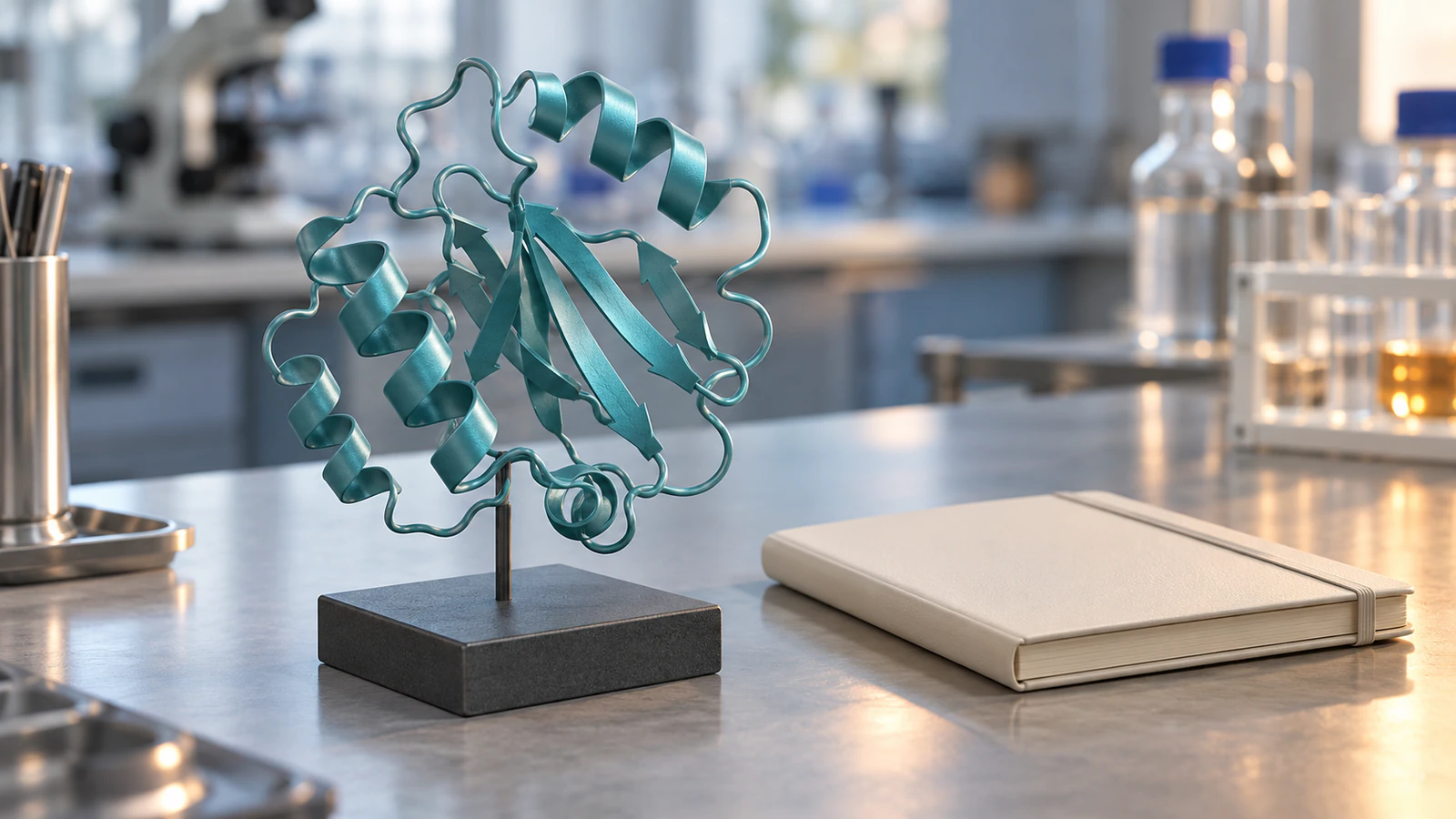
RCSB PDB entry 1UBQ contains human ubiquitin, a 76-residue protein, determined by X-ray diffraction at 1.80 Å resolution. It is a compact input for learning camera motion. The deposited coordinates describe a structural model, not a time series.
Enter these commands in the PyMOL command line, one at a time. The object name ubq keeps later selections unambiguous. Hiding the default display does not delete coordinates; the cartoon representation emphasizes the protein backbone.
After orienting the structure, inspect the whole silhouette. Leave room around it for the widest part of the turn. Save the setup session in your chosen folder before adding motion. If network fetching fails, download the PDB file from RCSB and use File > Open, then name the object ubq.
- fetch 1ubq, ubq, async=0
- hide everything, all
- show cartoon, ubq
- color teal, ubq
- bg_color white
- orient ubq
- zoom ubq, 5
- save ubq-setup.pse
Create a full rotation
A state is a coordinate arrangement; a frame is a position in the movie. Repeating state 1 across 120 frames gives the camera time to move without inventing additional protein conformations. The PyMOL movie manual explains this distinction.
Run the following commands after the setup. The first establishes the playback rate. The second repeats state 1 for the complete movie. The roll helper programs a loop around the y axis, its default axis. Use mstop to stop the preview.
The current movie helper source assigns a 3-degree turn to each of these 120 frames, totaling 360 degrees. We checked those generated instructions independently. That verifies the helper arithmetic, not the appearance or rendering behavior of every PyMOL build.
Watch the complete loop before exporting. A view that looks generous at the beginning may clip a long loop or side chain halfway through. Adjust the starting framing, then rebuild the movie from the saved setup if necessary.
- set movie_fps, 30
- mset 1 x120
- util.mroll 1, 120, 1
- mplay
Use rocking to keep a feature in view
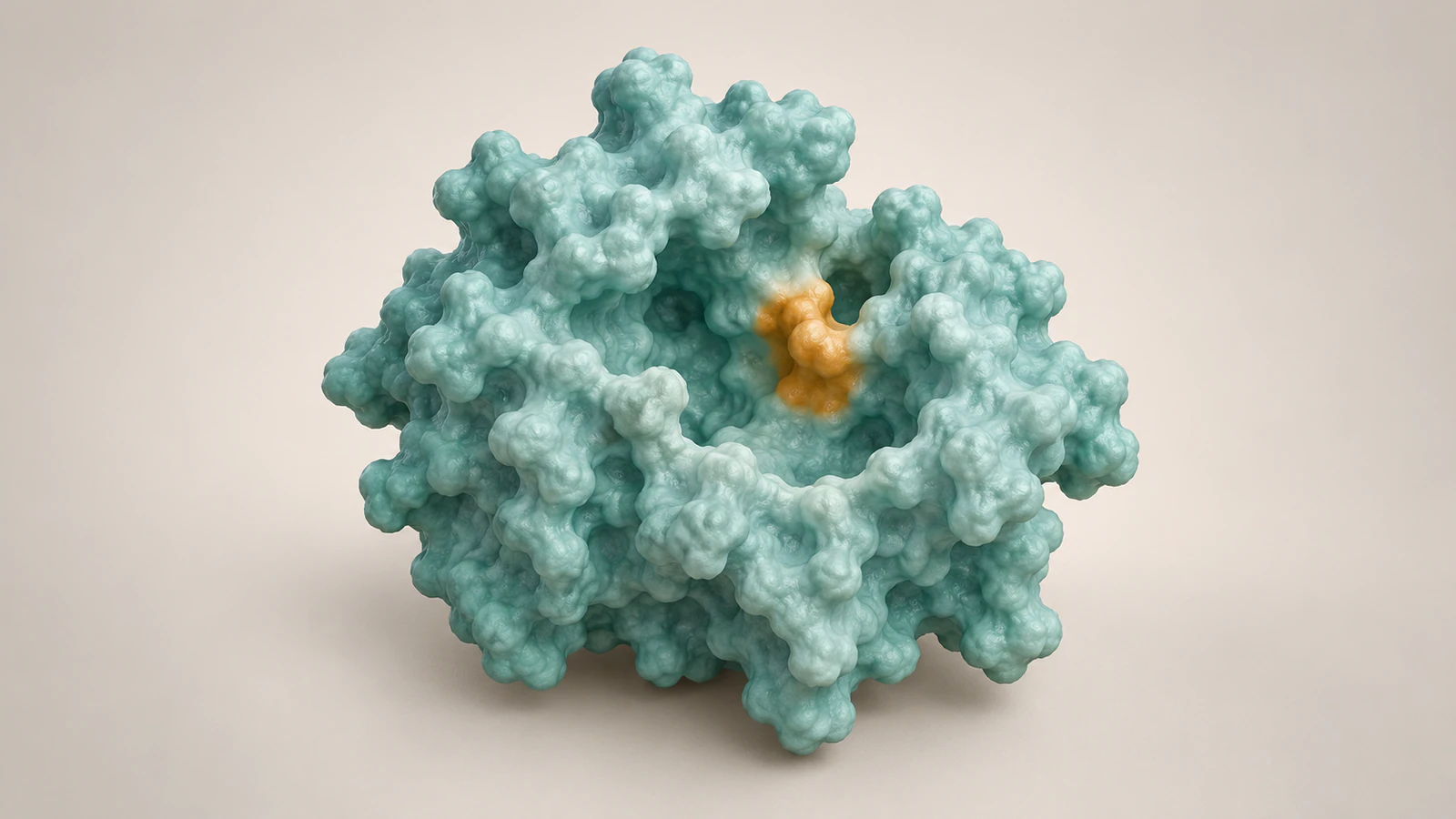
A full rotation is useful for overall shape, but it can hide the feature you want to discuss. Rocking gives a smaller back-and-forth change in viewpoint. For a pocket or surface patch, choose an initial view that keeps the feature visible throughout the sweep.
For a separate rocking version, return to the clean setup session and repeat the frame-rate and mset steps. Replace the roll command with “util.mrock 1, 120, 60”. Then run mplay. Do not stack the roll and rock helpers and assume they create separate clips.
The helper’s angle argument sets the overall angular span of the oscillation. Here, 60 is a chosen presentation angle, not a measured flexibility value. Keep the same coordinate state and colors so the audience can compare viewpoints without interpreting a color change as new biology.
If you need a transition between different structures, choose that task explicitly. Our protein morph versus simulation guide explains why an interpolated change is not evidence of the physical path between them.
Check frames with a small review record
Before committing to a long render, review four positions in the movie. Enter frame followed by the desired number, or use the movie slider. These checkpoints are an original handoff checklist: they test whether the clip communicates the chosen view, not whether the underlying structural model is biologically complete.
Write down the PDB identifier, selected object, state, frame range, playback rate and output dimensions. For this example, 120 frames divided by 30 frames per second gives four seconds. Adding a pause later changes the file’s duration, so update the record rather than recycling the original caption.
Keep camera time separate from biological time. A four-second turntable contains no measurement of a four-second protein process. For actual trajectories, follow the simulation-time and playback-time checklist.
| Checkpoint | What to inspect | Record |
|---|---|---|
| Frame 1 | Whole object fits; starting feature is identifiable | Starting orientation |
| Frame 31 | Quarter-turn view has no clipped protrusions | Framing adjustment if needed |
| Frame 61 | Back-facing view remains interpretable | Hidden feature or occlusion |
| Frame 120 and loop restart | No unintended pause, flash or framing jump | Loop approved or revise |
Export PNG frames and encode an MP4
Choose a new empty output folder and change PyMOL’s working directory to it with cd followed by the full path. Render a short low-resolution preview first. The mpng documentation describes numbered frame output and an inclusive first-to-last interval.
Stop playback with mstop, run “set cache_frames, 0”, then run “mpng ubq_, 1, 120, mode=2, width=1280, height=720”. Mode 2 requests ray tracing. Expect 120 numbered images, from ubq_0001.png through ubq_0120.png. Inspect several files directly before blaming the video encoder for a static result.
Open a terminal in that same folder and run the following command as one line. The input frame rate appears before -i because it describes the image sequence. The FFmpeg image-sequence documentation defines the numbered pattern and starting index.
ffmpeg -framerate 30 -start_number 1 -i ubq_%04d.png -c:v libx264 -crf 18 -pix_fmt yuv420p -movflags +faststart ubq.mp4
This produces an opaque H.264 MP4 with compatible pixel formatting. We tested this exact encoding command with FFmpeg 6.1.1 on 120 synthetic moving frames and decoded the result successfully. Keep your PNG sequence and PyMOL session until the final presentation file has been checked.
Direct export, GIF and transparent backgrounds
For direct legacy export, the current open-source implementation supports “movie.produce ubq.mp4, mode=ray, first=1, last=120, encoder=ffmpeg, width=1280, height=720”. Available formats depend on the encoders installed with your build. Check “help movie.produce” locally if an argument is rejected; older documentation describes an MPEG-only implementation.
For a smaller GIF from the PNG sequence, use the command below. It reduces playback to 15 frames per second and width to 640 pixels, then generates a palette for the clip. The official FFmpeg filter documentation explains palettegen and paletteuse. This command also passed our synthetic-input test.
ffmpeg -framerate 30 -start_number 1 -i ubq_%04d.png -vf "fps=15,scale=640:-1:flags=lanczos,split[a][b];[a]palettegen[p];[b][p]paletteuse" -loop 0 ubq.gif
For compositing, render a separate PNG sequence after “set ray_opaque_background, off”. The background setting reference describes alpha transparency. Verify an actual PNG over both light and dark backgrounds. The H.264/yuv420p MP4 command above does not preserve alpha; composite those transparent images onto the intended slide background before encoding.
Diagnose the exported file
Test the file outside PyMOL and then inside the presentation software you will actually use. Preview playback alone does not establish that the exported frames, codec or timing are correct. Compare the PNG sequence with the video to locate the failing stage.
Use a fresh output name for each revision. Mixing older and newer numbered images can create a movie that changes color, framing or content halfway through. A good-looking first frame is not enough: check the final frame and the loop boundary as well.
| Symptom | First check | Useful correction |
|---|---|---|
| Movie is a still image | Are separated PNG frames visually different? | Check legacy versus Timeline export and the programmed movie frames. |
| No MP4 appears | Read the encoder error and installed command help | Check FFmpeg availability or encode a verified PNG sequence separately. |
| Movie plays too quickly | Compare frame count and input frame rate | Set the intended -framerate before the image-sequence input. |
| Memory rises during rendering | Inspect cached-frame settings and resolution | Disable frame caching and test a smaller output first. |
| Black or white rectangle on a slide | Does the PNG actually contain alpha? | Use transparent PNGs for compositing; the provided MP4 is opaque. |
Turn a structure view into a biological story
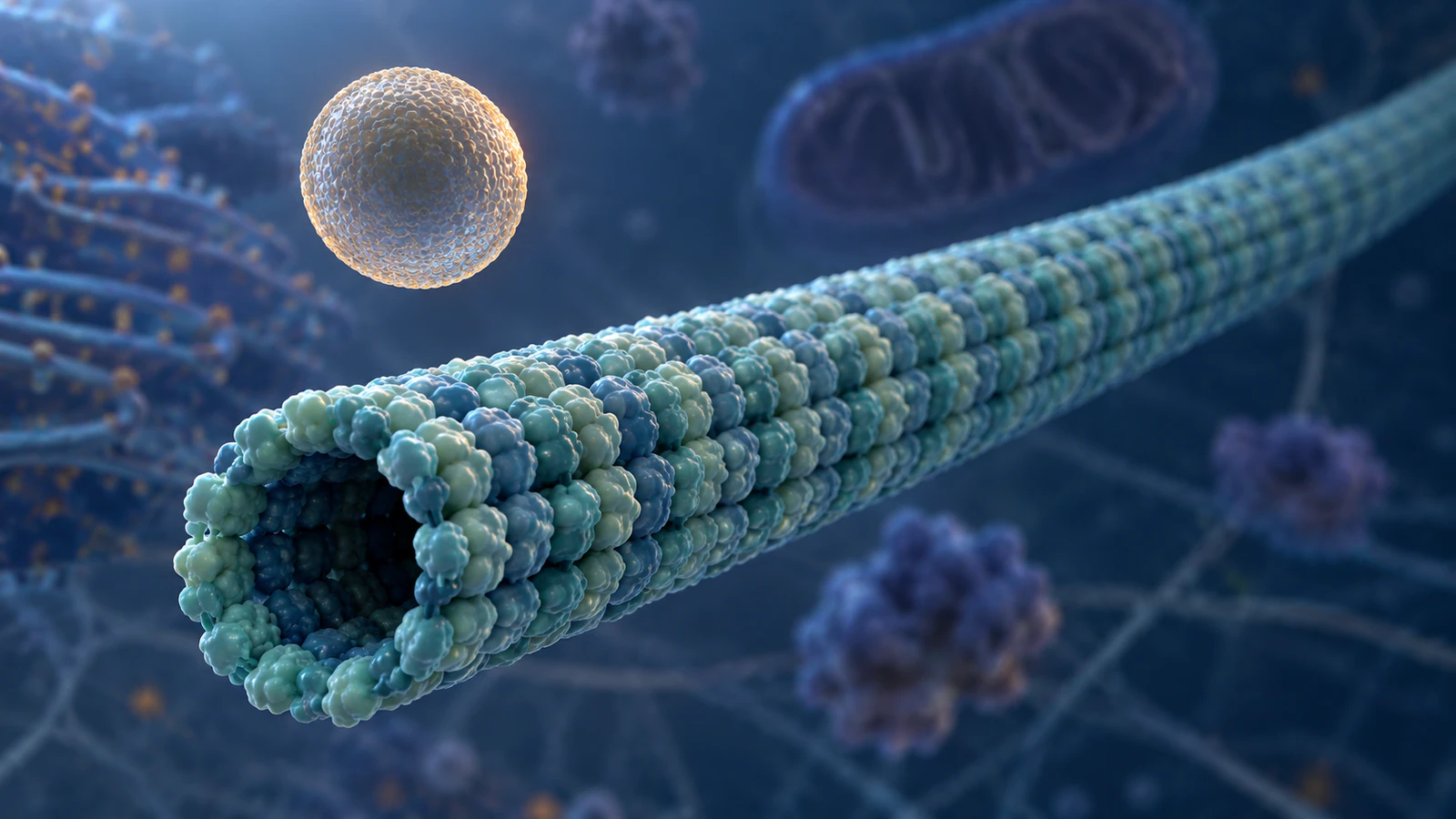
A turntable answers “What shape am I looking at?” A teaching film may need to answer “What does this molecule do?” Keep the verified structure view as the reference, then write the additional actions and context as a separate scene plan.
The Animiotics kinesin film shows a motor transporting cargo along a microtubule before pulling out to a larger neuronal context. Its page records structural sources and visual simplifications. It is an example of a biological narrative, not a PyMOL export or a validation of the ubiquitin illustrations here.
For your own handoff, specify three beats: identify the molecule, reveal the relevant feature and explain the supported action. Name which coordinates or references constrain each beat. Leave unknown motion unspecified. The molecular animation software page explains the Animiotics route, while the current documentation describes the supported creation and review controls.
Frequently asked questions
Why does my PyMOL movie export as a still image?
First inspect two widely separated exported PNG frames. If they are identical, check the programmed frames and whether you exported the intended legacy movie or Timeline composition. If the PNGs differ, investigate the encoding or playback stage.
Does rotating a protein simulate its motion?
No. This example reuses one coordinate state while changing the view. It does not calculate molecular forces, generate a folding trajectory or measure conformational changes.
Can I export a transparent MP4 with this workflow?
The H.264/yuv420p command provided here produces an opaque movie. Retain alpha in a ray-traced PNG sequence and composite it in software that supports transparency before making the presentation video.
How many frames do I need for a four-second clip?
At 30 frames per second, use 120 frames. Check the exported duration again if you add holds, remove frames or change the frame rate.
Are these commands a tested PyMOL rendering recipe?
They are a documented legacy workflow checked against current official sources. The motion-helper arithmetic and external FFmpeg encoding were tested separately; a complete local PyMOL protein render was not performed.
Try a protein scene in Animiotics
Use Animiotics for a teaching scene that moves from a whole protein to one feature you want to explain. Describe the molecule, the camera emphasis and the supported biological action. Review the resulting objects, scale and timing against your references before sharing it.
Signing up and the manual editor are free. New customers can try Starter for $2.99 for seven days with their first animation; Starter then costs $19 a month for six generations. Generation and rendering require the appropriate paid access. Begin with one short scene and inspect the result before expanding the story.