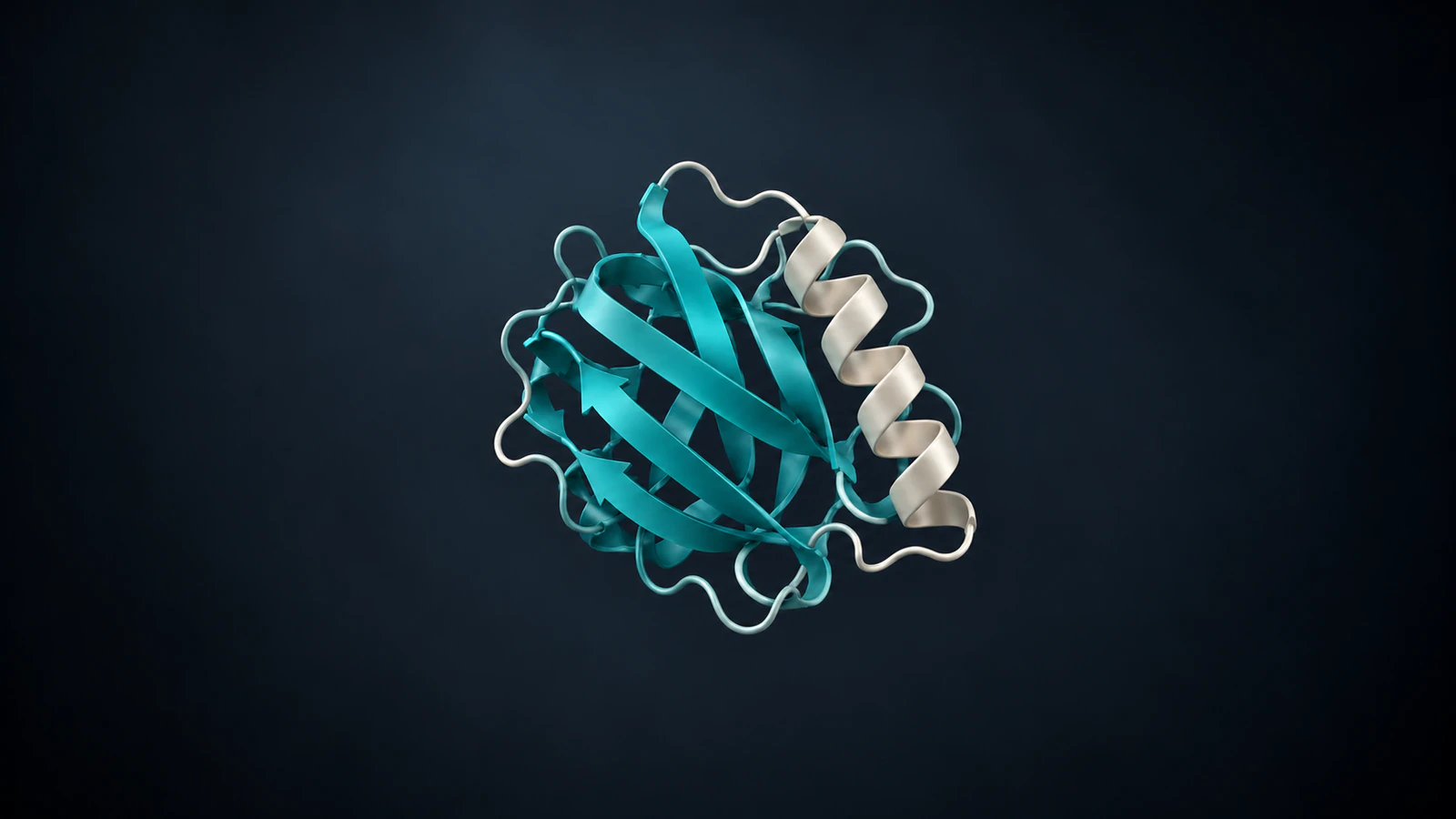
Export a transparent protein image
To export a PyMOL transparent background, turn off background opacity, render with ray tracing and save a PNG. Use set opaque_background, off, set ray_opaque_background, off and then png protein.png, width=1600, height=900, ray=1. Check the saved file over both a light and a dark background before putting it into your final slide or figure.
A black image-viewer window does not establish that the PNG is opaque. The useful test is whether the area outside the protein contains transparent pixels and whether the destination document preserves them. This workflow separates three decisions: which molecular object you show, how you render it and how you verify the exported file.
Choose the correct kind of transparency
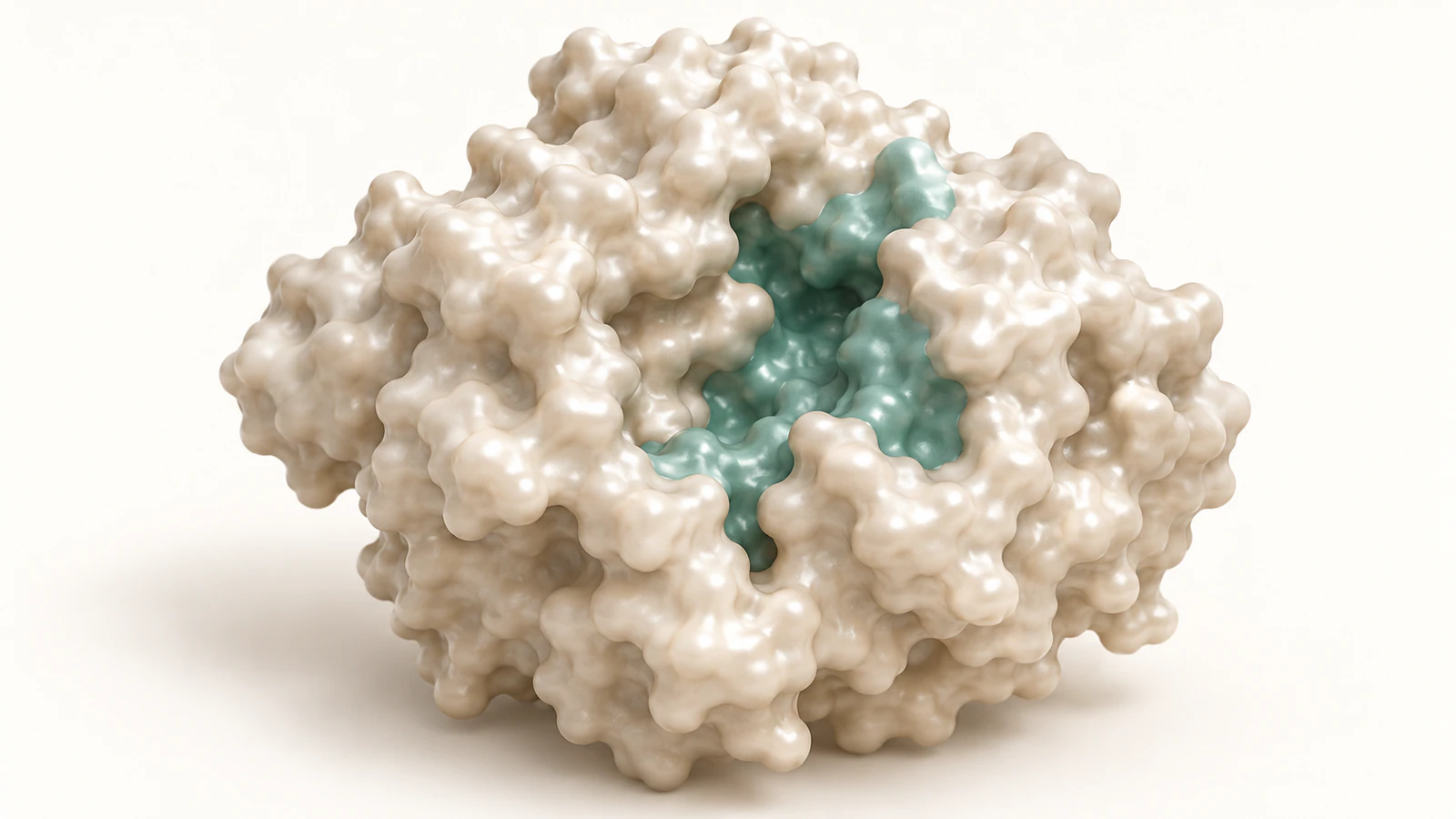
Background transparency removes the rectangle around a molecular rendering. Object transparency makes a molecular surface or another representation partly see-through. These solve different problems: a surface can be opaque on a transparent background, or translucent on a solid white background.
The PNG specification describes alpha as per-pixel opacity information. For an 8-bit alpha channel, zero is fully transparent and 255 is fully opaque. Intermediate values are useful at smooth edges; their presence alone is not an error.
Decide whether the audience needs the fold, the outer shape or both. Our guide to protein surface versus ribbon explains that presentation choice. Do not lower the opacity of every object merely because you want to remove the image background.
Prepare a traceable structure and output folder
Use an installed PyMOL with its command line visible and a writable output folder. The vendor lists PyMOL 3.1.9 on October 30, 2026; these steps use the documented command interface rather than a version-specific menu layout. Type help png in your installation to inspect its supported arguments. The recipe below was checked against the documentation; a full PyMOL rendering was not executed for this article.
The example uses PDB 1UBQ, an X-ray structure of ubiquitin refined at 1.8 angstrom resolution. An angstrom is one ten-billionth of a meter. The coordinate file provides a small, concrete input for a figure-export exercise; it is not a time-resolved experiment.
Download the coordinate file from the entry page and retain the original. Our independent file check found 76 C-alpha atom records in chain A. That count provides a simple selection check, not a completeness guarantee for another protein. Record the entry, chain, downloaded filename and chosen representation beside your exported figure.
The illustrations in this article are conceptual scientific CGI. They are not 1UBQ coordinate renders, PyMOL screenshots or examples of the exact PNG produced by the commands.
Build the 1UBQ view with documented commands
Start in a fresh PyMOL session so that unrelated open models do not appear in the export. Save any existing work first. Place 1ubq.pdb in your chosen working folder, or use its full path in the load command. Enter the following lines in order; the output names are deliberately different from the original coordinate file.
load 1ubq.pdb, ubq_source
create ubq_figure, ubq_source and chain A and polymer.protein
disable ubq_source
hide everything, ubq_figure
show cartoon, ubq_figure
color teal, ubq_figure
orient ubq_figure
zoom ubq_figure, 4
The expected scene is one cartoon representation of the protein. The source object remains available but disabled; the figure object contains the selected protein chain. Check the object list and the visible view before continuing. If the selection is empty, stop and inspect the downloaded file and chain identifier instead of rendering a blank frame.
The official command reference documents the load, create, display and export commands. Orientation is a presentation decision: rotate the view if a loop hides an important feature, but keep that final view in your saved session so another person can reproduce the composition.
Render and save the PNG
Set both the general and ray-traced background controls explicitly. This avoids relying on an inherited session preference. The ray background setting controls whether the ray-rendered background is opaque; the maintainer support example also uses an opaque-background-off PNG workflow.
set opaque_background, off
set ray_opaque_background, off
png ubq-transparent.png, width=1600, height=900, dpi=300, ray=1
save ubq-figure.pse
Wait for the render to finish and confirm that the new file exists where expected. Use a full output path when the current directory is unclear. A PNG stores the rendered image; the PSE session is a separate working file for returning to the molecular view.
The dimensions above are an illustrative landscape choice. For a journal figure, calculate the pixels needed for its final printed size and required resolution. At 300 pixels per inch, 1600 pixels span about 5.33 inches. Changing the DPI metadata does not manufacture additional image detail; request enough pixels at rendering time.
Verify alpha instead of trusting the preview
Open the exported PNG in an image editor that can display transparency. Place a solid white layer underneath it, then change that layer to dark gray. The empty corners should adopt the layer color while the protein remains visible. A checkerboard preview is a useful cue, but it can also be baked into an ordinary image; the two-background test catches that mistake.
For a numeric check, Python users with Pillow installed can inspect the file without modifying it. Run these lines in Python from the output folder. This is an optional file audit, not a PyMOL command sequence.
from PIL import Image
im = Image.open("ubq-transparent.png")
print(im.mode, im.size)
print(im.convert("RGBA").getchannel("A").getextrema())
For this opaque-protein-on-transparent-background example, an alpha range containing both 0 and 255 is the expected starting point. A range of (255, 255) means every converted pixel is opaque. An all-zero range means the image is entirely invisible. Intermediate edge values can be correct. We checked this diagnostic on synthetic transparent and opaque PNG fixtures; those fixtures do not validate a PyMOL render.
A min/max report does not tell you where those pixels occur. Confirm that transparent pixels surround the intended molecule and that the subject is not partly missing. Keep the visual check even when the numeric result looks right.
Diagnose black backgrounds and damaged edges
Work from the original PNG before changing molecular settings again. A display problem, a flattened export and an empty molecular selection need different repairs. Record which application first changes the appearance; that narrows the investigation considerably.
Avoid deleting dark or white pixels by color selection as your first repair. Such a selection can remove genuine highlights, shadows or pale molecular regions. Re-exporting with an intact alpha channel preserves the intended edge better than manually erasing a guessed background.
| Observed problem | Check first | Next action |
|---|---|---|
| Black rectangle in one viewer | Place original PNG over two colored layers | If alpha works, change viewer or document handling |
| Opaque in every application | Inspect alpha extrema and export filename | Set both background controls off and ray-render again |
| Transparent image with no protein | Check alpha and visible molecular objects | Repair selection or enabled state before export |
| Light fringe on a dark slide | Compare original PNG with final slide export | Find where resampling or flattening introduced the fringe |
| Protein cropped at an edge | Inspect the requested landscape frame | Zoom out slightly and render at final dimensions |
| File seems unchanged | Check path and modification time | Write a new versioned PNG and reopen that file |
Keep surface opacity separate
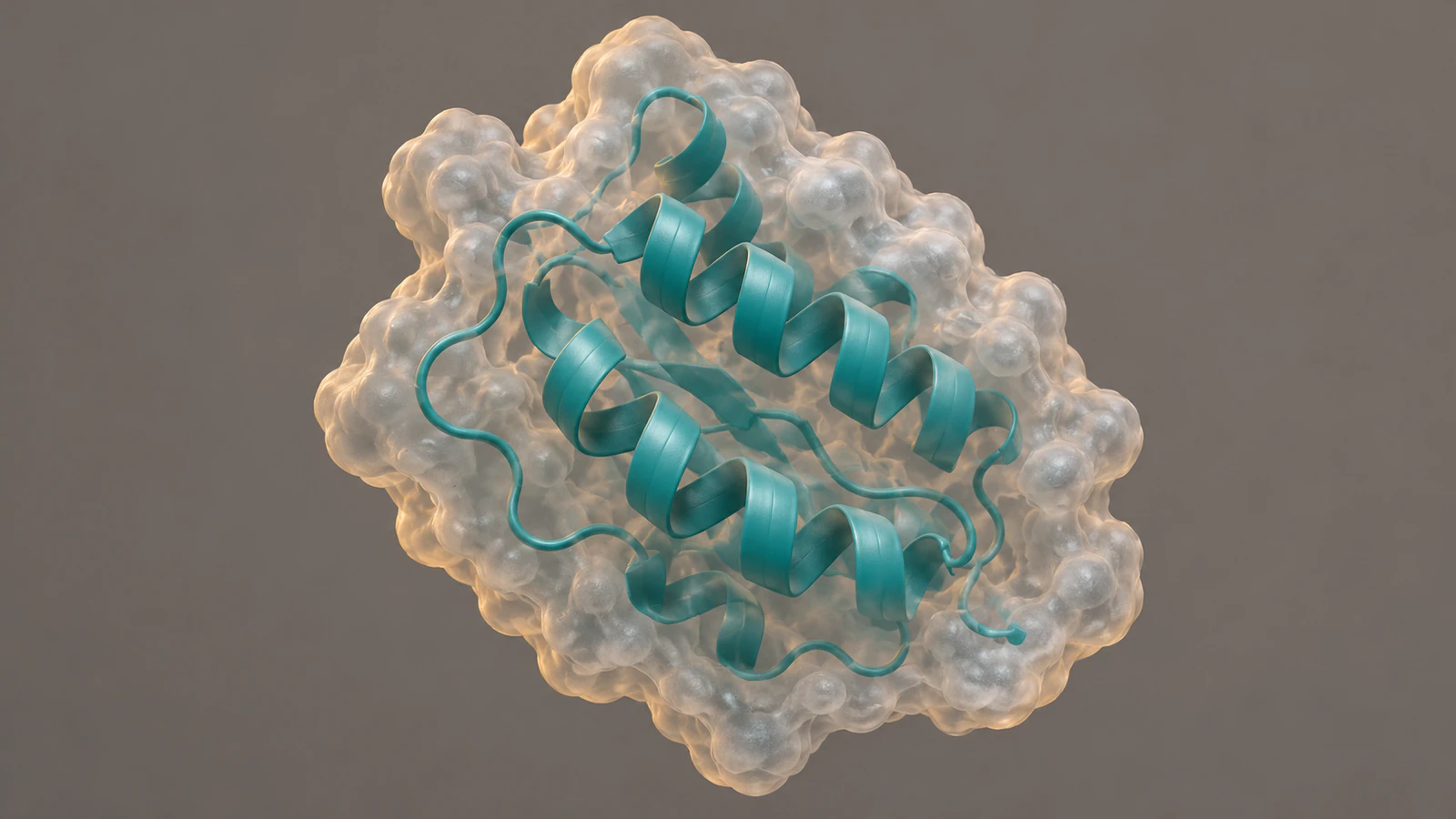
If your teaching goal needs an internal cartoon visible through an outer surface, use the surface transparency control deliberately. In PyMOL, show surface, ubq_figure adds the surface and set transparency, 0.5, ubq_figure makes that surface partly transparent. The value is a display choice, not a measurement of protein density or solvent accessibility.
A half-transparent surface can make a figure harder to read when several layers overlap. Check the region that matters at the size it will appear in the talk. If the ribbon becomes visually confused with the surface, a separate view or a simpler representation may explain the structure more clearly.
Background export still needs its own settings. For a comparable workflow in another molecular viewer, use the ChimeraX transparent-background guide. Do not transfer command names between applications.
Review the final slide and preserve a handoff record
Insert the PNG as an image file into the destination document, rather than taking a screenshot of its preview. Check it on the actual slide background at presentation size. Then export the document to the format your audience will receive and inspect that exported result. A correct source PNG cannot guarantee that every subsequent application handles it correctly.
Use this short handoff record when a collaborator places the image. It separates the molecular evidence from the artwork decisions and gives them the files needed to fix a layout problem without guessing.
For the worked example, a suitable record says: 1UBQ, chain A, protein-only cartoon, teal display color, fixed orientation, 1600 by 900 PNG, background alpha checked on white and dark gray. Append your actual PyMOL version, export date and observed checks rather than copying a claim of successful rendering from this tutorial.
- Original coordinate file and PDB entry link
- PML commands or session file that recreates the view
- PNG filename, dimensions and alpha result
- Final document filename and checked background colors
- Caption distinguishing experimental structure from presentation choices
Turn the structural still into an animation brief
A transparent figure is useful for a title slide, but it does not explain a sequence by itself. If the next task is a rotating structural view, follow the PyMOL movie tutorial. Background transparency in a PNG should not be treated as proof that a later movie export will preserve alpha.
For a wider scientific story, the Animiotics molecular-animation workflow offers an editable scene. The existing kinesin film shows a molecular motor moving along a microtubule. It illustrates the difference between a standalone protein view and an animated biological relationship; it does not validate a ubiquitin mechanism.
A useful handoff for this example is a proposed three-shot study: hold the protein cartoon, rotate the intact structure and switch to a surface view while preserving identity and orientation. Attach the coordinate file and explain the intended comparison. Specify that the rotation is a camera or object presentation, not a folding trajectory. This is a proposed scene plan, not a newly generated or tested Animiotics film.
Frequently asked questions
Why does my transparent PNG look black?
Some viewers show transparent pixels over black. Check the original PNG on white and dark layers and inspect its alpha values before concluding that the export failed.
Does setting the background to white make it transparent?
No. White is a color. Transparency requires alpha information that lets the document background show through.
Is surface transparency the same as background transparency?
No. Surface transparency changes how a molecular representation is drawn. Background transparency changes the opacity of the image area around it.
Does 300 DPI guarantee publication quality?
No. You also need enough pixels for the final size, readable molecular detail and a scientifically appropriate representation. Follow the receiving journal or conference requirements.
Can I use this PNG as evidence of protein motion?
No. A rendered static structure contains no measured trajectory. A later rotation can show shape, but it does not demonstrate a biological transition.
Try a structure-based scene in Animiotics
Use the reviewed structure and the three-shot brief to try an editable animation in Animiotics. The current Create workflow accepts a PDB or mmCIF reference and lets you request changes, then review the scene and render it. Check the resulting molecular identities, representation and motion against your own source before presenting it.
Signing up and the manual editor are free. New customers can try Starter for $2.99 for seven days with their first animation; the current academic monthly Starter plan is $19. Generation and exports require a paid plan. Review the current terms before choosing your plan.