Choose the operation for the question
For an ImageJ Z projection, use maximum intensity when you want each output pixel to retain the brightest value encountered through the selected slices. Use average to summarize their arithmetic mean, or sum to add their values. Choose the slice interval deliberately: all three methods discard the depth location of the contributing signal. A projection is a derived image, not a single optical section or a recovered three-dimensional structure.
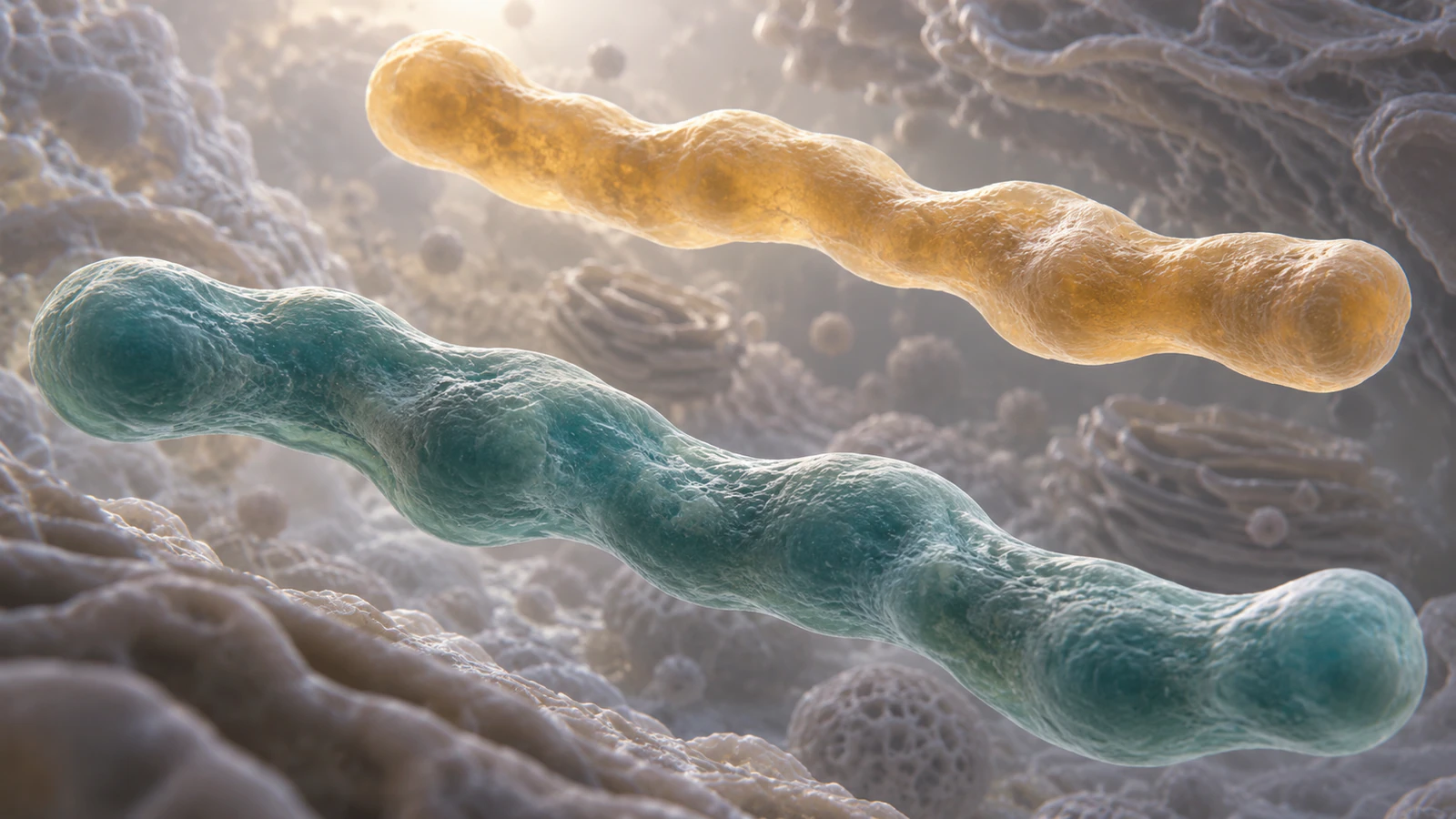
This guide tests the choice with a three-slice synthetic stack in standalone ImageJ 1.54g. It follows the output through a TIFF save and reopen, then gives a figure checklist and a separate teaching-scene plan. Menu instructions are documentation-based; the numerical macro was executed. The four CGI images are conceptual illustrations, not microscopy observations or evidence for the calculations.
Keep the stack and identify its axes
Retain the acquisition files and work on a copy. The Office of Research Integrity guidance recommends preserving originals and their metadata. Save the projection as a separate derived file with a record of its inputs. A working TIFF does not guarantee preservation of every vendor-specific acquisition field.
Confirm the width, height, bit depth, number of channels, z slices and time points. A z stack samples different depths; a time series samples successive moments. A hyperstack can contain both. The ImageJ stack guide describes this distinction. Do not interpret a stack of channels or time points as depth just because the window has a slider.
For this example, the prerequisites are a fresh ImageJ session and a three-slice, single-channel stack with one time point. No microscope file, plugin or biological sample is required. For your dataset, inspect the import settings first and retain the recorded z spacing if you need to describe the physical depth interval.
Compare three summaries at one coordinate
Each output coordinate summarizes values at the same x and y position through the chosen slices. In our invented example, one position contains 10, 100 and 10. The maximum is 100, the average is 40 and the sum is 120. None tells the reader which slice held the value 100.
A second position contains 0, 0 and 90. Its maximum is 90, average 30 and sum 90. Comparing these two positions exposes a useful distinction: the same-looking bright feature can represent a brief peak through depth or signal distributed across several slices. Projection appearance alone cannot resolve that difference.
The Z Project documentation defines the available methods. The decision table below is a figure-planning aid, not a rule that validates quantitative biological comparisons. Choose an analysis method separately, with acquisition settings, background and sampling accounted for.
| Method | What it retains | Question to ask before using it |
|---|---|---|
| Maximum | Largest selected value at each x,y | Do I need an overview of bright features, and have I checked bright noise or saturation? |
| Average | Arithmetic mean of selected values | Is this slice interval meaningful, and will additional background planes alter the summary? |
| Sum | Total of selected values | Are depth sampling and slice counts appropriate for the comparison, and can my output preserve the resulting range? |
Run Z Project with an explicit interval
Open the working stack and inspect individual slices before projecting. Choose Image > Stacks > Z Project, enter the start and stop slices and select the projection type. For the synthetic example, start at 1 and stop at 3. Record those settings alongside the result rather than relying on its filename.
For a hyperstack, check the active time point and the All Time Frames choice. Confirm the output dimensions afterward. If you intended a single time point but obtain a series, return to the input dimensions and recorded options before interpreting the result. The command is documented in the online ImageJ guide; interface wording may vary with installation.
The guide is versioned 1.46r, while our executed arithmetic audit used ImageJ 1.54g. This is not a claim to have tested the latest Fiji distribution or its microscope import plugins. On a different installation, record a small projection with the macro recorder and verify its output before processing a large experiment.
Reproduce the three-slice test
Open Plugins > New > Macro and enter the lines below in order. Run this in a fresh session without valuable unsaved images. The stack is only three pixels wide, so enlarge the view if necessary. The values have no physical units and describe no biological specimen.
The macro reference documents the image and pixel functions. After the maximum projection, select the window named Z-test and repeat the final command with Average Intensity, then Sum Slices. Select each result and inspect its three pixels with getPixel or the ImageJ value display.
- newImage("Z-test", "16-bit black", 3, 1, 3);
- setSlice(1); setPixel(0,0,10); setPixel(1,0,0); setPixel(2,0,40000);
- setSlice(2); setPixel(0,0,100); setPixel(1,0,0); setPixel(2,0,40000);
- setSlice(3); setPixel(0,0,10); setPixel(1,0,90); setPixel(2,0,40000);
- run("Z Project...", "start=1 stop=3 projection=[Max Intensity]");
Check the result before judging brightness
Our ImageJ 1.54g audit returned the values in this table. Maximum and average outputs remained 16-bit, while sum produced a 32-bit image. At the third coordinate, 40000 plus 40000 plus 40000 became 120000. The result therefore required a representation beyond the 16-bit unsigned range.
We saved the sum as TIFF and reopened it. The three values remained 120, 90 and 120000, and the reopened image was still 32-bit. The source retained three slices and all nine original values. These observations verify this small ImageJ workflow, not every export format or downstream application.
A brighter-looking window is not sufficient verification because display ranges can differ between images. Compare values and bit depth first, then document display settings. Our brightness and contrast guide provides a separate test of that distinction. Do not convert the sum to a lower bit depth merely to make it resemble the maximum.
| Pixel x | Input slices 1,2,3 | Maximum | Average | Sum |
|---|---|---|---|---|
| 0 | 10,100,10 | 100 | 40 | 120 |
| 1 | 0,0,90 | 90 | 30 | 90 |
| 2 | 40000,40000,40000 | 40000 | 40000 | 120000 |
Test what changing the interval removes
We repeated maximum projection using only slices 1 and 2. The result became 100, 0 and 40000. The second feature disappeared because its only nonzero value was in the excluded third slice. Nothing in the two-slice projection warns a reader that the omitted feature existed.
This gives a concrete preflight check for a real figure: inspect the first and last selected slices and compare the chosen projection with a neighboring interval. Explain any boundary choice using the specimen and acquisition, not the most attractive result. Keep the settings consistent where the comparison requires them.
Consider an additional all-zero plane as an arithmetic thought experiment. It would leave the three-pixel maximum unchanged, lower the average and leave the sum unchanged. An added plane containing background or signal could change the sum too. This is why method and interval belong together in the figure record; slice count alone does not explain the contents.
Resolve depth and channel ambiguities
Two objects at different depths can occupy the same x,y coordinates in a projection. Inspect individual planes, and use Image > Stacks > Orthogonal Views when an x,z or y,z view helps answer the depth question. That view remains dependent on the acquired sampling and calibration; it does not create resolution the microscope did not record.
For multichannel data, keep channel identity separate from projection choice. Record the same depth interval where that is required for the comparison, inspect the single-channel results and only then prepare the merge. Our channel-merging workflow explains how to retain the channels before making a presentation copy.
A merged overlap color is not proof of binding. The ImageJ colocalization guidance explains why visual overlap requires careful interpretation. Projection can add a depth ambiguity, but it is not the only issue: registration, bleed-through and optical resolution also affect the claim. Use an analysis and controls suited to the biological question.
| Unexpected result | First check | Useful response |
|---|---|---|
| Feature vanishes | Selected slice interval | Inspect the omitted planes and document the intended boundary. |
| Projection is unusually bright | Output range, bit depth and display limits | Read pixel values before changing the presentation. |
| Bright isolated points dominate | Individual slices and acquisition saturation | Investigate the source; do not silently erase inconvenient pixels. |
| Wrong time point appears | C,Z,T dimensions and All Time Frames | Correct the selection and repeat from retained data. |
| Colored structures seem to touch | Single planes and orthogonal views | Separate visible overlap from evidence of physical interaction. |
Make the figure traceable
Keep the stack, derived projection and presentation export as separate records. Reopen the saved projection in the intended analysis software and sample known coordinates. For a sum, include a value that tests the high end of its range. Check spatial calibration before placing a scale bar, especially if the presentation copy is resized.
A caption template can be concise: “Maximum-intensity projection of [channel] across slices [start to stop], acquired at [recorded z spacing]. Display settings were [values and comparison policy]. [Relevant processing] was applied.” Replace the brackets with measured or recorded facts. Do not equate a slice count with a physical thickness without checking how the acquisition defines the interval.
For our example, say “Synthetic three-pixel stack used to compare projection arithmetic; no specimen was imaged.” Keep that statement with the numerical table. The surrounding cellular and microscope illustrations explain context only and cannot validate a fluorescence measurement.
- Record source file, software version, channel, time point and selected slices.
- Record projection method, output bit depth and relevant display adjustments.
- Retain the reopened-file value check and the original acquisition metadata.
- Inspect the exported figure at its final reading size, including its caption and scale bar.
Explain lost depth with a separate scene
A teaching animation can show what the projection hides. Animiotics supports a written scene brief and edits to camera, colors and timing. Use it for a conceptual spatial explanation alongside the measured figure. This is not a workflow for importing a microscope stack, reconstructing its geometry or calculating a projection.
Try this brief: “Show two separate elongated cellular compartments, one teal and one amber, at different depths. Start with an oblique camera that makes the gap clear. Rotate toward a view where their silhouettes overlap, hold briefly and rotate back. Keep the objects separate throughout. Do not depict binding, measured fluorescence or reconstructed sample geometry.” This proposed brief was not executed in Animiotics for this article.
Review three moments: a visible gap, an overlapping view and the restored depth view. Keep identities and positions consistent while the camera changes. Label the scene as conceptual and explain that a camera silhouette is an analogy for lost depth, not a numerical maximum-intensity calculation. Show the ImageJ result separately when discussing actual pixel values.
Frequently asked questions
Which Z projection should I use for a figure?
Choose the summary that answers the figure question, then state the method and slice interval. Maximum retains per-coordinate peaks, average gives their mean and sum adds them. None preserves where along z the contributing values occurred.
Does sum projection measure the number of molecules?
Not by itself. Our test verifies addition of pixel values, not calibration to molecule counts. Biological interpretation requires an appropriate measurement model, acquisition controls and background treatment, with the original data retained.
Why is the sum image 32-bit?
In our ImageJ 1.54g test, adding three 40000-valued pixels produced 120000, and the sum output was 32-bit. Saving and reopening the TIFF preserved that value. Check the actual output type and values in your own workflow.
Can I recover the original stack from a projection?
A projection does not retain all contributing values and their slice positions. Multiple different stacks can produce the same projection. Keep the source stack instead of treating the derived image as a reversible replacement.
Was this tested in Fiji?
The numerical projection and TIFF round trip were executed in standalone ImageJ 1.54g. The menu procedure was checked against official documentation. Fiji versions and import plugins can differ, so repeat the small synthetic audit in the installation used for your experiment.
Try a depth explanation in Animiotics
Use your checked projection for the research result and try Animiotics for the separate two-compartment depth explanation. Review the current paid trial terms on the homepage. Sign-up and the manual editor are free; AI generation and exports require a paid plan. Check the scene for scientific meaning before sharing it.